Send new HighLevel leads to CRTX automatically so the AI can begin working them immediately.
This is a one-way connection. CRTX does NOT write back into HighLevel for this setup.
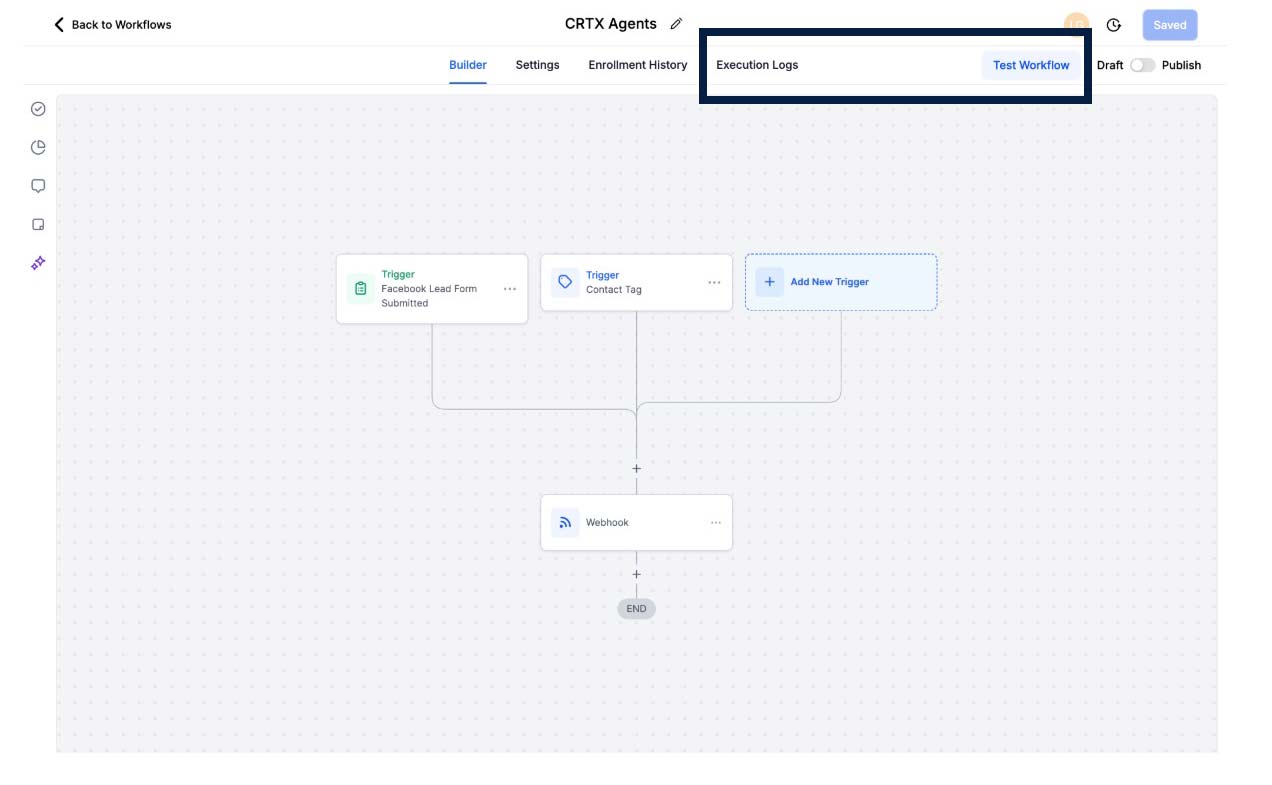
Go to your HighLevel account and open the correct sub-account. Click Automations, then click Create Workflow.
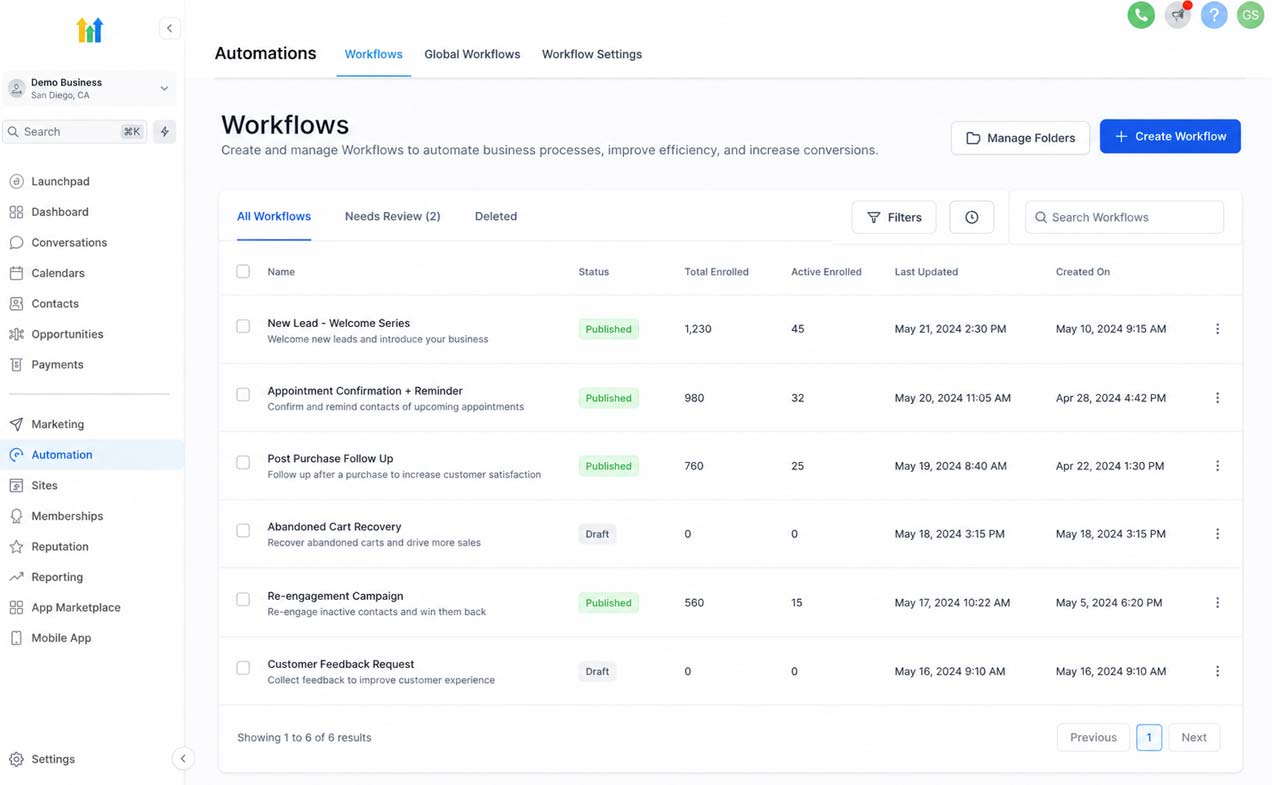
Choose the event that should send the lead to CRTX. Matches how your leads enter HighLevel (Form Submitted, Facebook Lead Form, etc.).
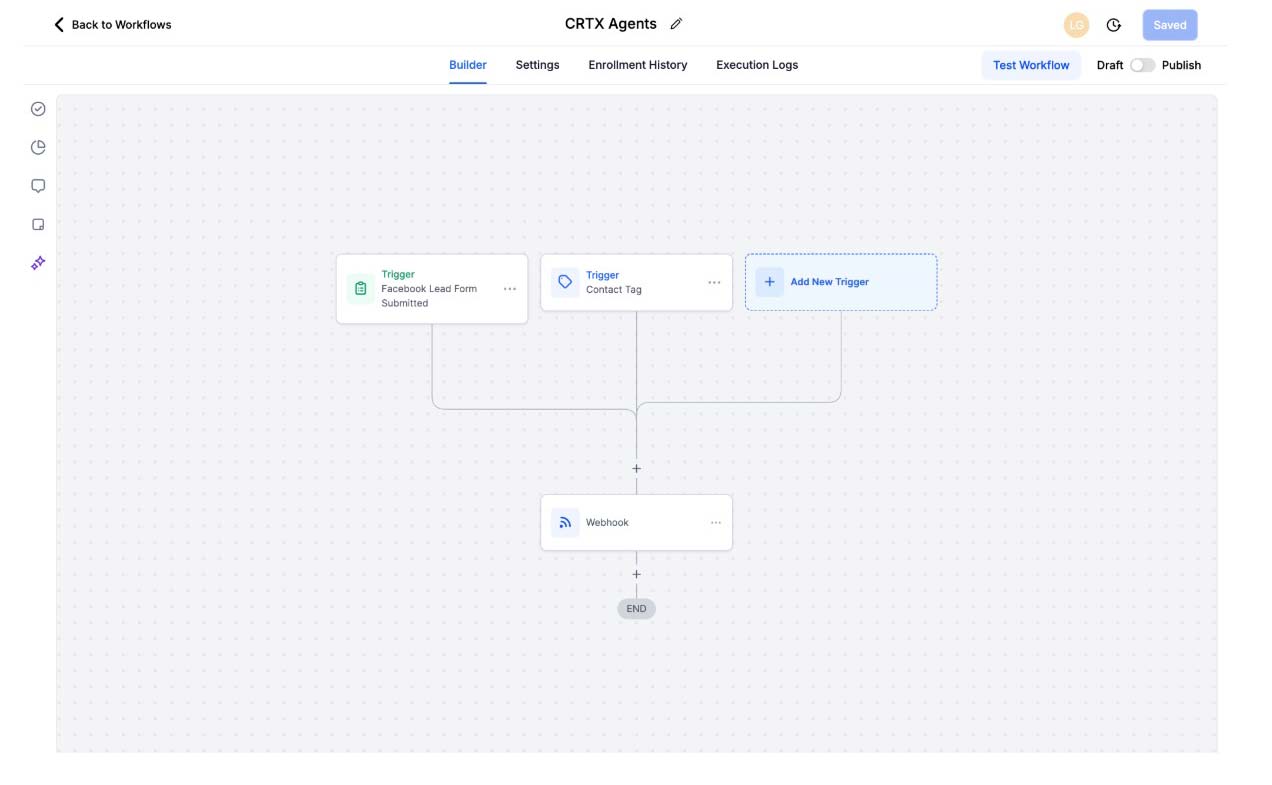
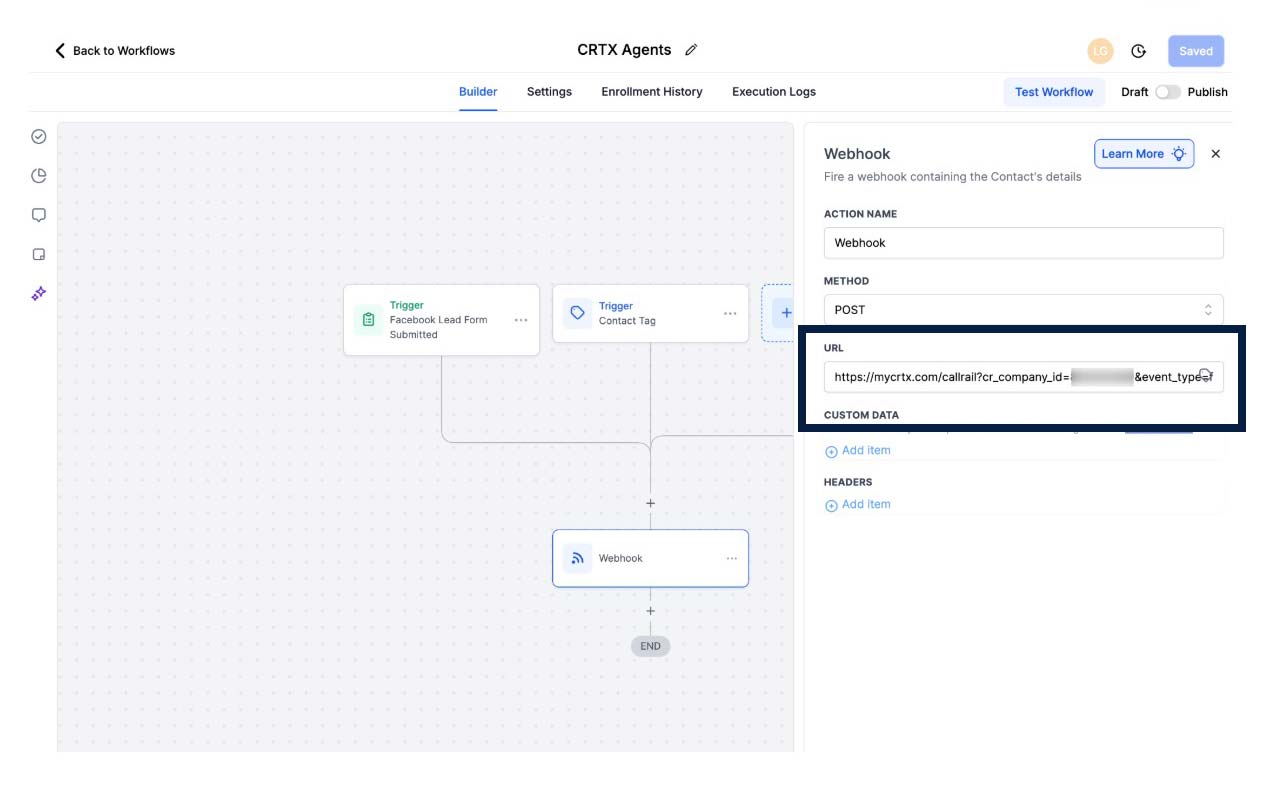
Add a new workflow action and choose Webhook. Set the Method to POST and paste your CRTX URL.
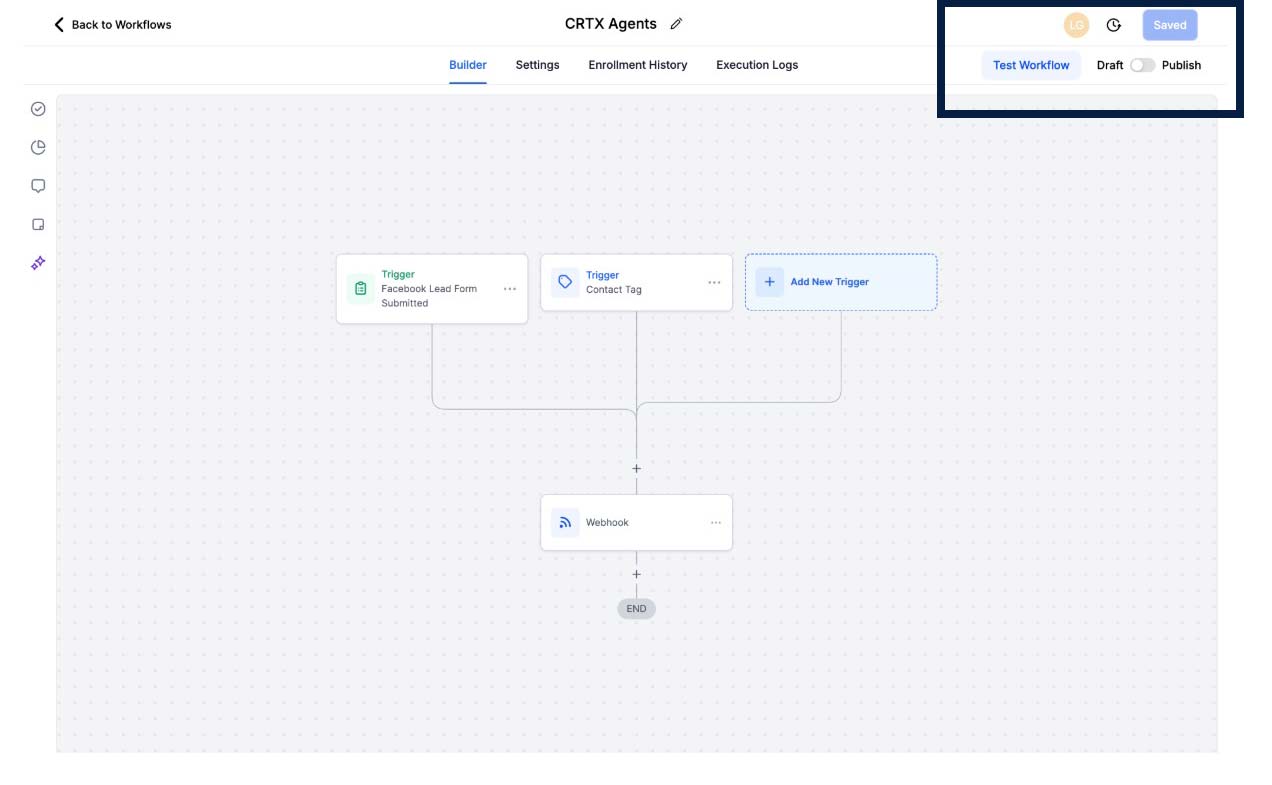
Save the workflow, turn it on, and Publish. From this point forward, matching leads are sent to CRTX automatically.
Create one test lead with a name, phone, and email. Confirm the workflow fired and the lead appeared in CRTX.
Quick answers to the most common workflow and technical questions regarding the HighLevel integration.
This connection sends new HighLevel leads to CRTX automatically. It is a one-way bridge: HighLevel → CRTX. Once CRTX receives the lead, the AI can begin follow-up based on your practice setup.
No. This setup only sends lead/contact data from HighLevel to CRTX. CRTX does not write notes, tasks, tags, or pipeline updates back into HighLevel through this connection.
Log in to myCRTX and navigate to:
Admin → Practice Playbook
Use the exact webhook URL shown for your practice. Do not use another practice’s URL.
Use the trigger that matches how the lead enters HighLevel. Common options include:
If you are not sure, use the point where the contact first becomes a real lead.
Use the POST method. This securely pushes the lead data directly to CRTX.
Usually, no. The default HighLevel contact data is enough. If manually mapping fields, include: first name, last name, phone, and email.
At minimum: first name, last name, and phone number. Phone is critical as it allows CRTX to text or call the lead immediately.
A standard mobile number is required. E.164 format is preferred (Example: +11234567890).
Yes. Helpful metadata includes: tags, url, source, campaign, landing_page, and notes. These help the AI understand the lead's intent.
Yes. Tags like implant or smile-simulation help CRTX trigger the correct conversation path immediately.
Yes, but each practice must use its own CRTX webhook URL. Ensure each workflow maps to the correct practice-specific URL.
Yes. You can have separate workflows for Meta and Website leads as long as they both route to the same practice webhook.
Yes. Simply use the Facebook Lead Form Submitted trigger in HighLevel, then add the CRTX webhook action.
Yes. Use triggers like Form Submitted or Contact Created to push funnel contacts to the webhook.
Yes. The standard logic is: Third-party tool → HighLevel contact → HL Workflow → CRTX Webhook.
Yes. However, please notify CRTX Support so we can configure the AI follow-up behavior to align with your HighLevel messaging.
Send a test lead and verify: 1) Did the HL trigger fire? 2) Did the webhook run? 3) Did the lead appear in CRTX? 4) Did the AI start follow-up?
Check the Execution History or Logs inside the specific HighLevel workflow to see if the action succeeded or failed.
Send your practice name, webhook URL, and screenshots of your workflow configuration and execution logs for a test lead.
Common causes include: Unpublished workflows, triggers not firing, missing phone numbers, or using the wrong practice webhook URL.
Usually due to a lack of context. Ensure your webhook is sending the correct Tag (e.g., implant) so CRTX knows which path to take.
No. Use filters in your HighLevel workflow to only send leads you want the AI to work on.
Yes. Always verify with a test lead before launching a live campaign to ensure lead flow is 100% accurate.
CRTX creates the record and Grace (the AI) immediately begins the configured follow-up (SMS, calls, or scheduling links).
Yes. By utilizing tags, source, and campaign fields, CRTX can tailor its dialogue specifically to the lead's entry point.
Update your HighLevel workflow tags and notify CRTX Support so we can adjust the backend conversation logic if necessary.
Yes. Simply unpublish or turn off the workflow in HighLevel to stop sending leads to the CRTX webhook.