Ask anything about how myCRTX works. Note: For privacy reasons, do not ask details about handling specific patients.
A brief 3-minute walkthrough of the 2026 Triage Engine and "Clear to Zero" philosophy.
The myCRTX 2026 workflow: "Clear to Zero" every day.
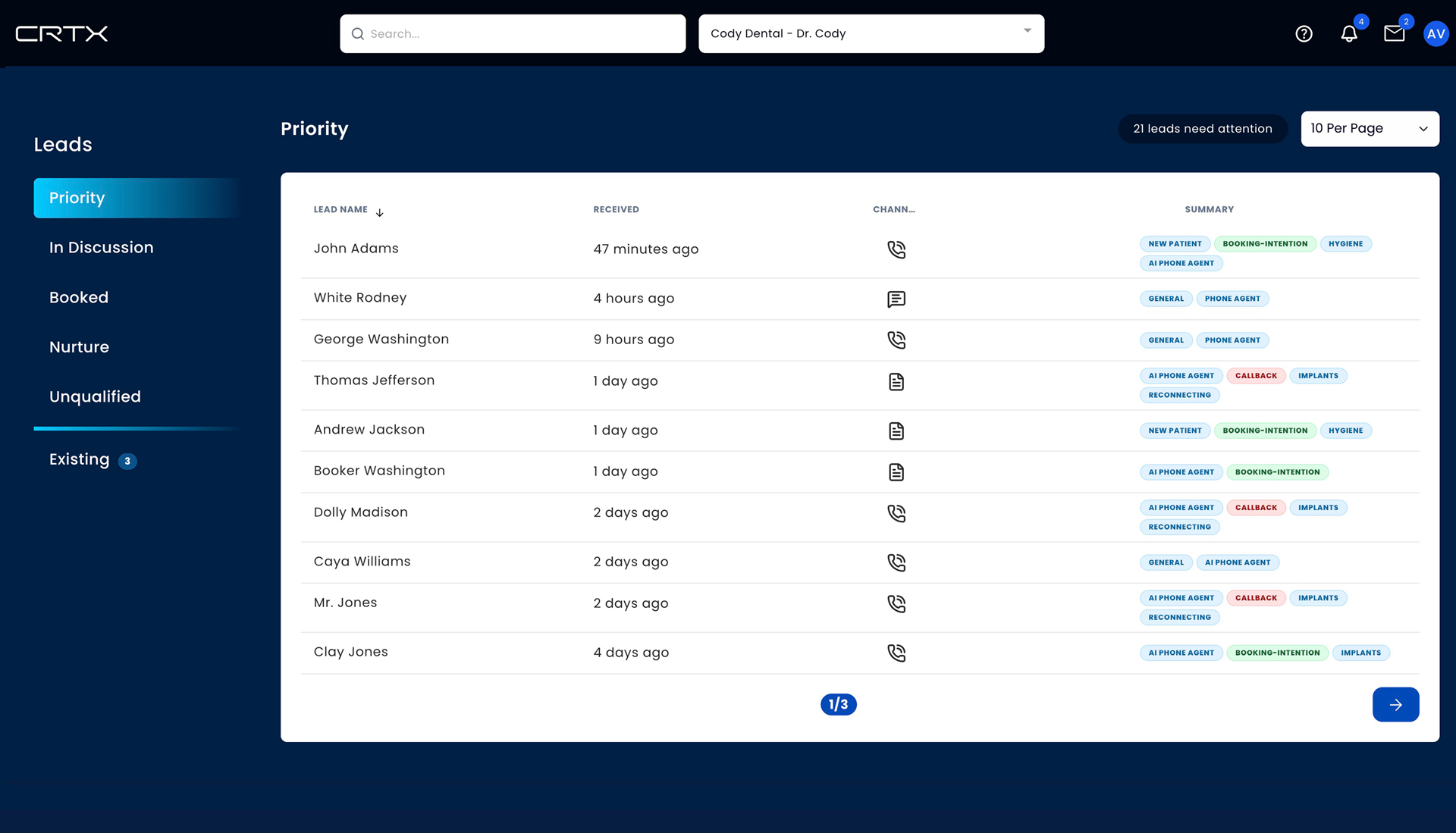
Use the Priority stage to identify leads needing immediate attention. Look for the Blue Unread Dots. These are your first tasks of the day.
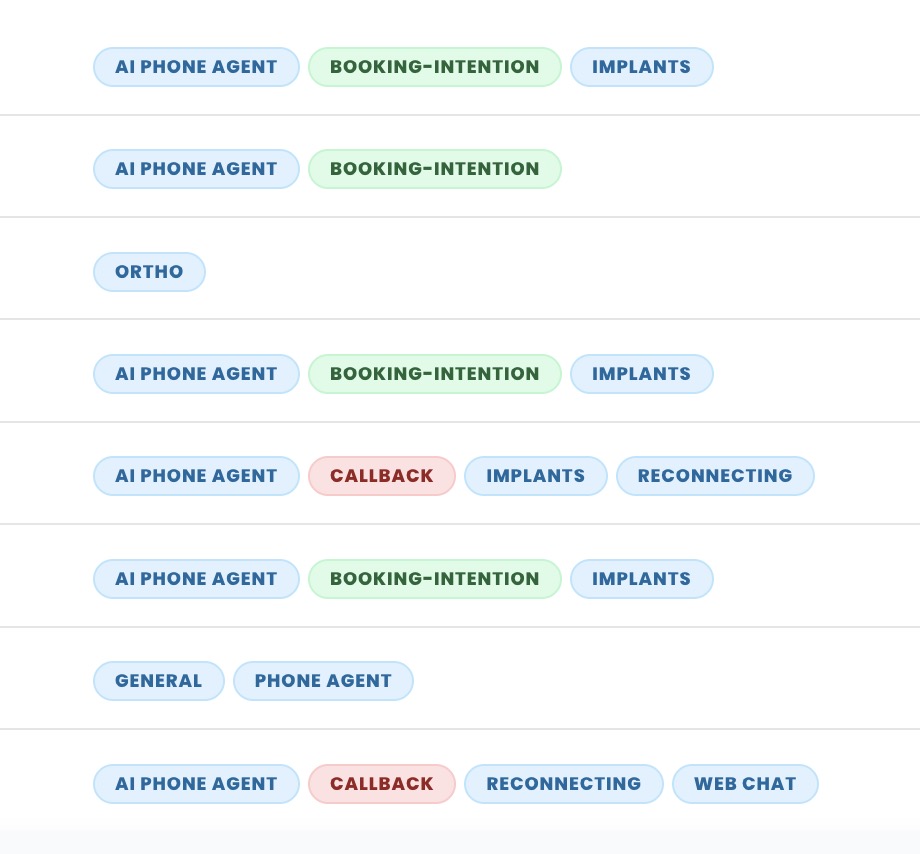
Scan leads in seconds using color-coded logic. Click any tag to instantly filter your list by urgency or intent.
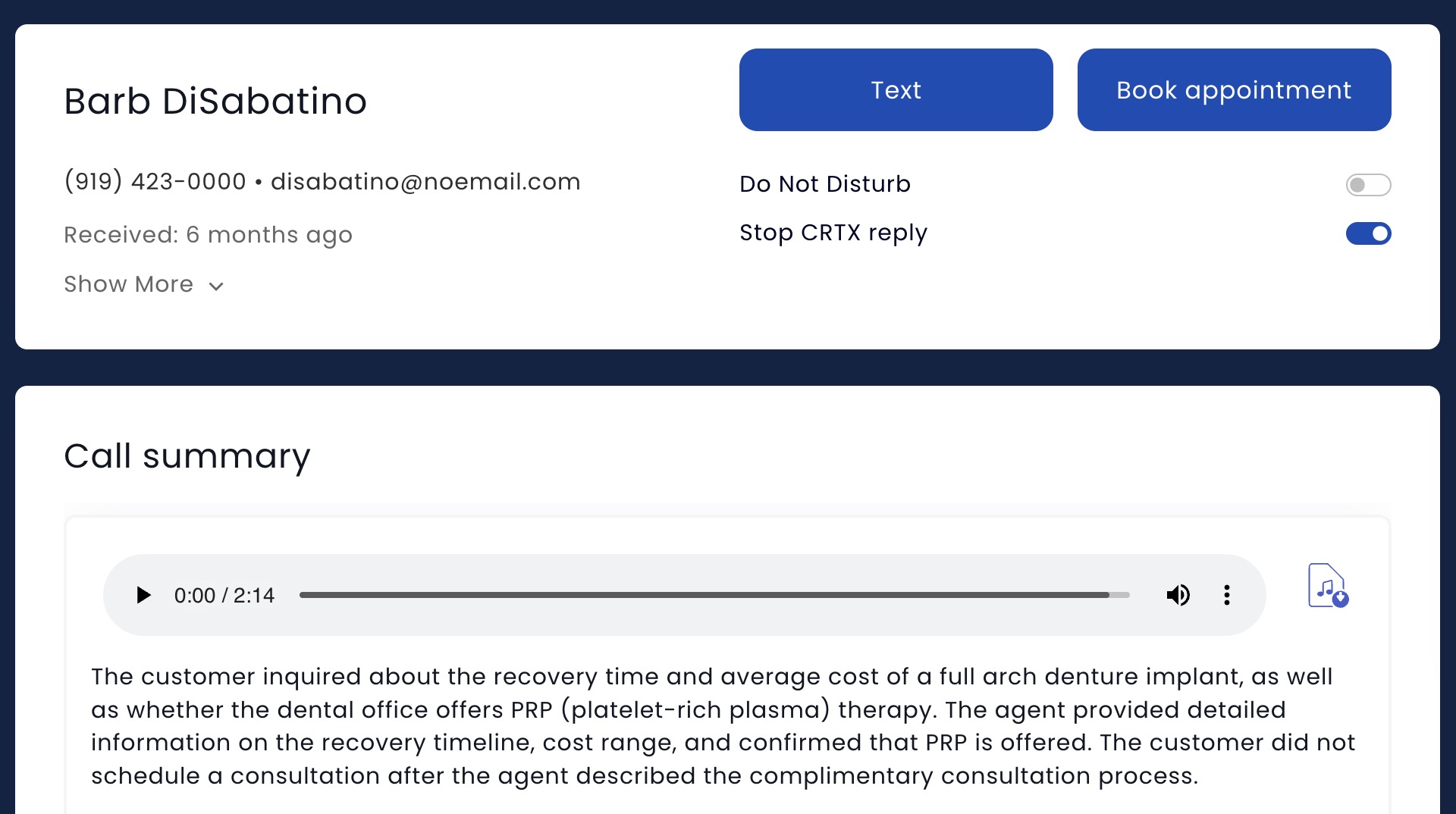
Click a name to open the Profile. Use the Blue Buttons to send a manual text or book an appointment immediately. Before texting, click "Stop CRTX Reply" below buttons.
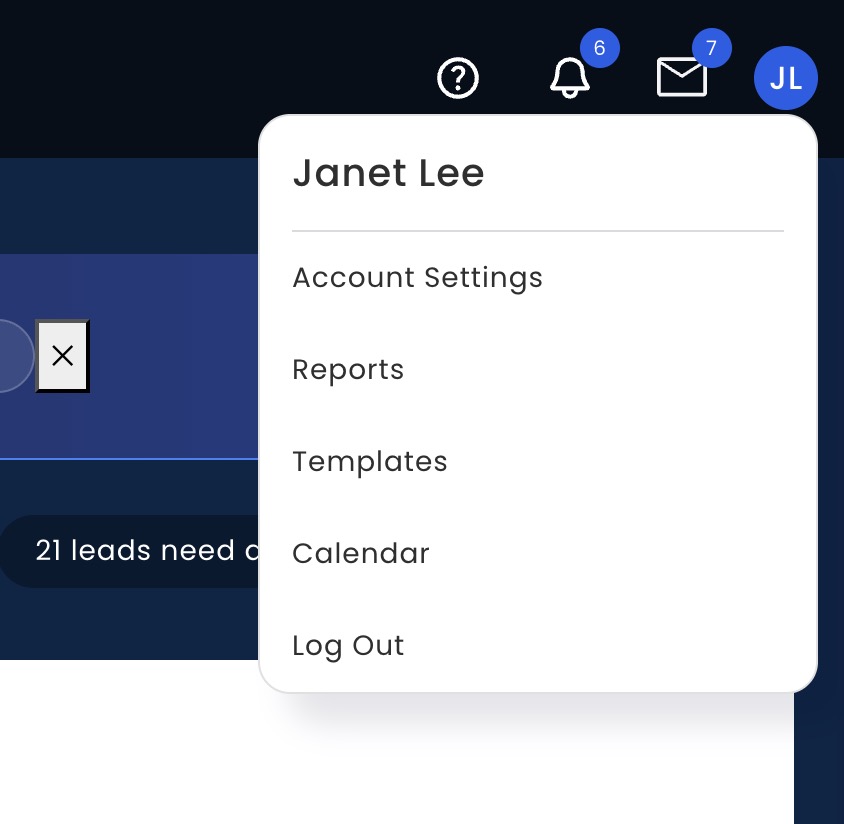
Your admin tools are tucked away at the top right of your screen. Click your initials to find Account Settings, Notification Controls, Reports, Templates, and Calendar.
Quick answers to the most common workflow and technical questions.
It has been renamed to Priority. This is your new high-velocity workspace. Any lead that requires a human to step in—such as a callback request, a complex question, or an emergency—will automatically appear here. Your primary goal each day is to "Clear to Zero" by processing every lead in this list.
If a staff member answers the phone directly, the lead is placed in the In Discussion stage. Because a human handled the interaction, the AI (Grace) does not automatically start a nurture sequence. These leads remain in the In Discussion stage until you manually move them to Priority, Nurture, Unqualified, or Booked.
The new Dashboard uses a "Traffic Light" triage system to help you scan leads in seconds. Red tags indicate high-priority items like callbacks or emergencies. Green tags highlight success markers like "Booking Intent." Blue tags provide helpful context, such as identifying if a lead is "Reconnecting" or was handled by the "AI Phone Agent."
The Dashboard is for triage (identifying who needs help), while the Patient Profile is for action. Simply click on the Patient's Name from the Dashboard to open their full profile. Once inside, you can log notes in the Timeline, send manual text messages, or use the blue Book / Reschedule button to log an appointment.
To protect your clinical relationships, myCRTX 2026 keeps existing patients in a dedicated Existing Patients stage. This prevents the AI from accidentally sending "New Patient" marketing or nurture texts to someone already under your care. Always check the Existing Patients tab for alerts regarding callbacks or reschedules for your current patient base.
Anything not related to daily lead-handling has been moved to the Avatar Menu in the top-right corner of the screen. Click on the circle containing your initials to access your Account Settings, Reports, Templates, and the Calendar. This keeps your main workspace focused and clutter-free.
If you want to take full control of a conversation, go to the Patient Profile and locate the Auto-Reply Toggle (under the blue Text button). Click the toggle Stopy CRTX Reply. This silences the AI for that specific patient thread, allowing you to handle the follow-up manually without any automated interference.
A lead is moved to In Discussion when a human staff member has actively engaged with them. This stage signals to the rest of the team that someone is currently "working the record." When a lead is In Discussion, all automated AI messaging is paused so the human can lead the conversation to a booking outcome. The practice member who engages the lead should move the person into In Discussion manually from the patient's profile.
In the Nurture stage, our AI Agent (Grace) sends context-aware text messages. Unlike a generic drip campaign, Grace reads the previous conversation history to answer questions about pricing, insurance, or procedure details. She keeps the dialogue moving forward naturally until the patient is ready to book, asks for a human callback, or disqualifies themself.